# NServiceBus Quickstart: Sending and processing your first messages
In just 10 minutes, see how to:
* Send and process command messages
* Publish and subscribe to event messages
* All fully abstracted from the underlying queuing system
> [!NOTE]
> * If you're new here, check out the [overview](https://particular.net/nservicebus).
> * The [Glossary of messaging terms](/nservicebus/concepts/glossary.md) may help as you go along this tutorial.
> * If you're already familiar with the basic benefits of messaging, check out our [step-by-step tutorial](/tutorials/nservicebus-step-by-step/index.md) for a deeper dive instead.
## About the solution
The solution mimics a retail system where a [command](/nservicebus/messaging/messages-events-commands.md) to place an order is sent as a result of customer interaction. An [event](/nservicebus/messaging/messages-events-commands.md) then is published to kick off processes in the background. Using the [publish-subscribe pattern](/nservicebus/messaging/publish-subscribe/index.md) allows us to isolate the component that performs billing from the one that places orders. This reduces coupling and makes the system easier to maintain in the long run. Later in this tutorial, you will learn how to add a second subscriber to that event in a new **Shipping** endpoint which will begin the process of shipping orders.
## Download the solution
The solution has no prerequisites — no message queue or database to install, just a compatible IDE. To get started, download the solution, extract the files, and then open the **RetailDemo.sln** file.
## Project structure
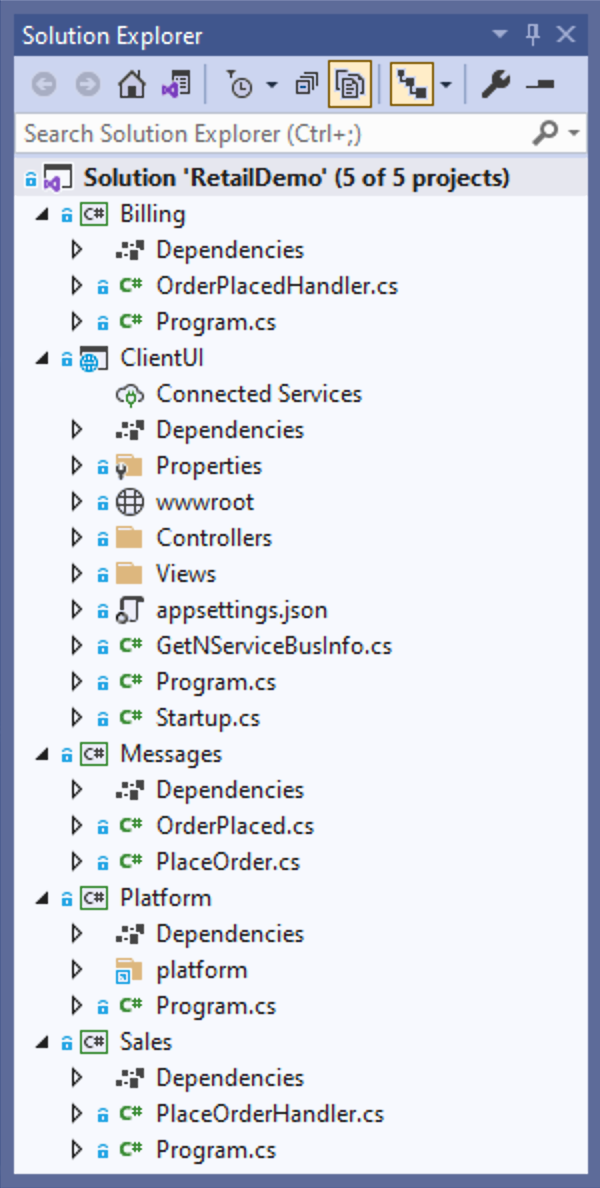
The solution contains five projects: **Billing**, **ClientUI**, **Messages**, **PlatformLauncher**, and **Sales**.
The **Billing**, **ClientUI**, and **Sales** projects are [endpoints](/nservicebus/endpoints/index.md). They communicate with each other using NServiceBus messages. The **ClientUI** endpoint is implemented as a web application and is the entry point to our system. The **Sales** and **Billing** endpoints, are console applications, that contain business logic related to processing and fulfilling orders.
Each endpoint project references the **Messages** assembly, which contains the shared definitions of messages as class files. The **PlatformLauncher** project will provide a demonstration of the Particular Service Platform, but initially, its code is commented out.
## Initial workflow
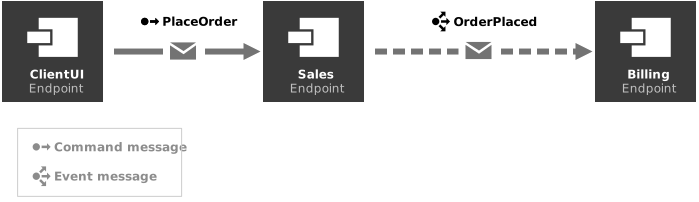
The **ClientUI** endpoint sends a **PlaceOrder** command to the **Sales** endpoint. As a result, the **Sales** endpoint will publish an **OrderPlaced** event using the publish/subscribe pattern, which will be received by the **Billing** endpoint, as shown in the diagram below.
## Running the solution
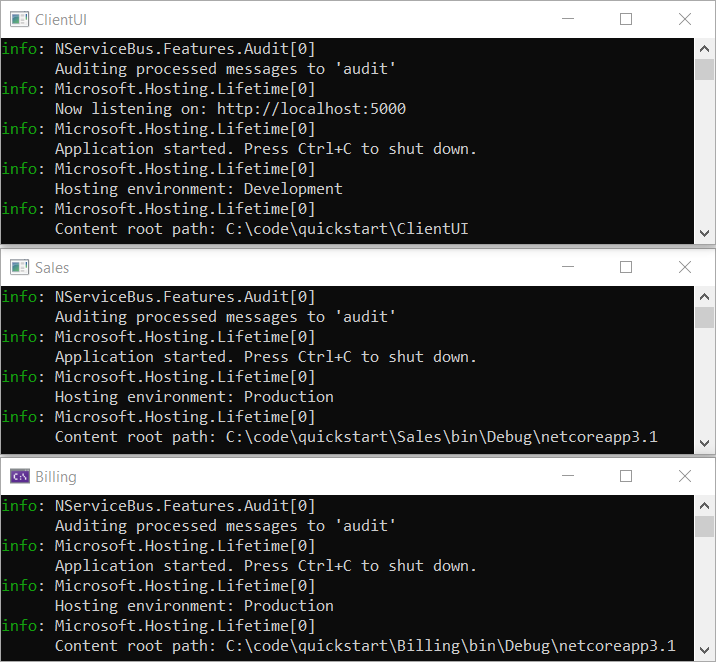
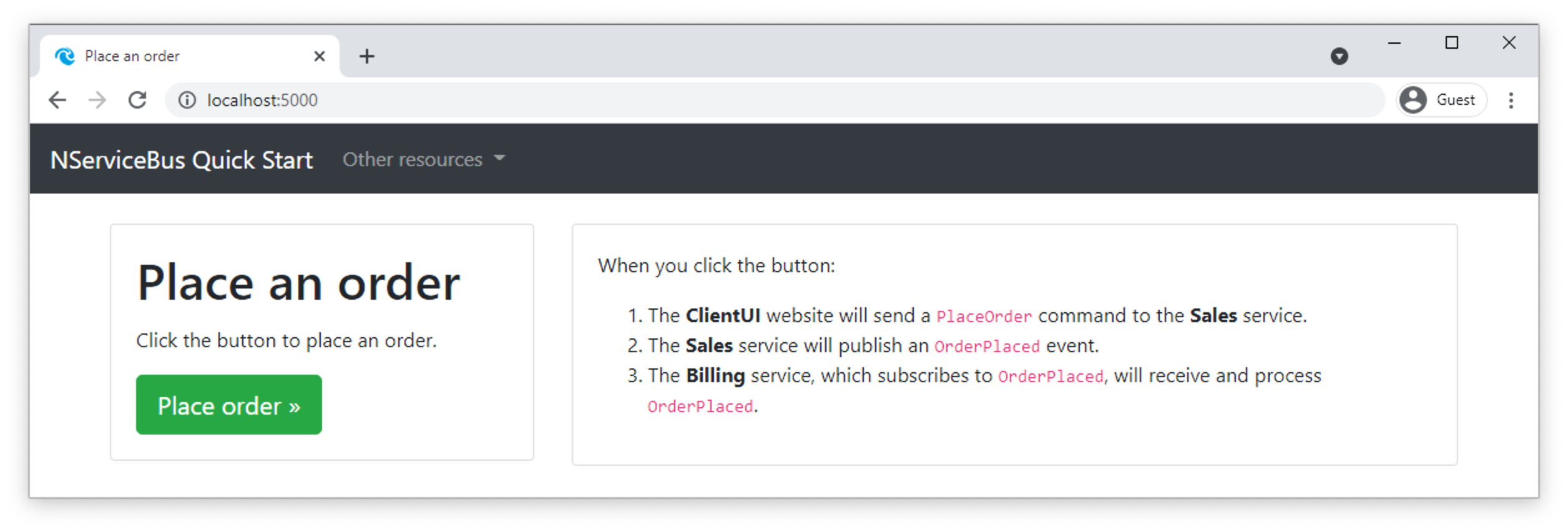
The solution is configured to have [multiple startup projects](https://learn.microsoft.com/en-us/visualstudio/ide/how-to-set-multiple-startup-projects), so when you run the solution (**Debug** > **Start Debugging** or press F5) it should open three console applications, one for each messaging endpoint. Additionally, one of these will open the web application in your browser. The Particular Service Platform Launcher console app will also open but not do anything. Depending on your IDE, it may persist or immediately close.
> [!WARNING]
> Did all three windows appear?
> - For [Visual Studio Code](https://code.visualstudio.com/) users, ensure the _Debug All_ launch configuration is selected from the dropdown list under the _Run and Debug_ tab.
> - For [Rider](https://www.jetbrains.com/rider/) users, follow the steps described on [their documentation](https://www.jetbrains.com/help/rider/Run_Debug_Multiple.html#multi_launch)
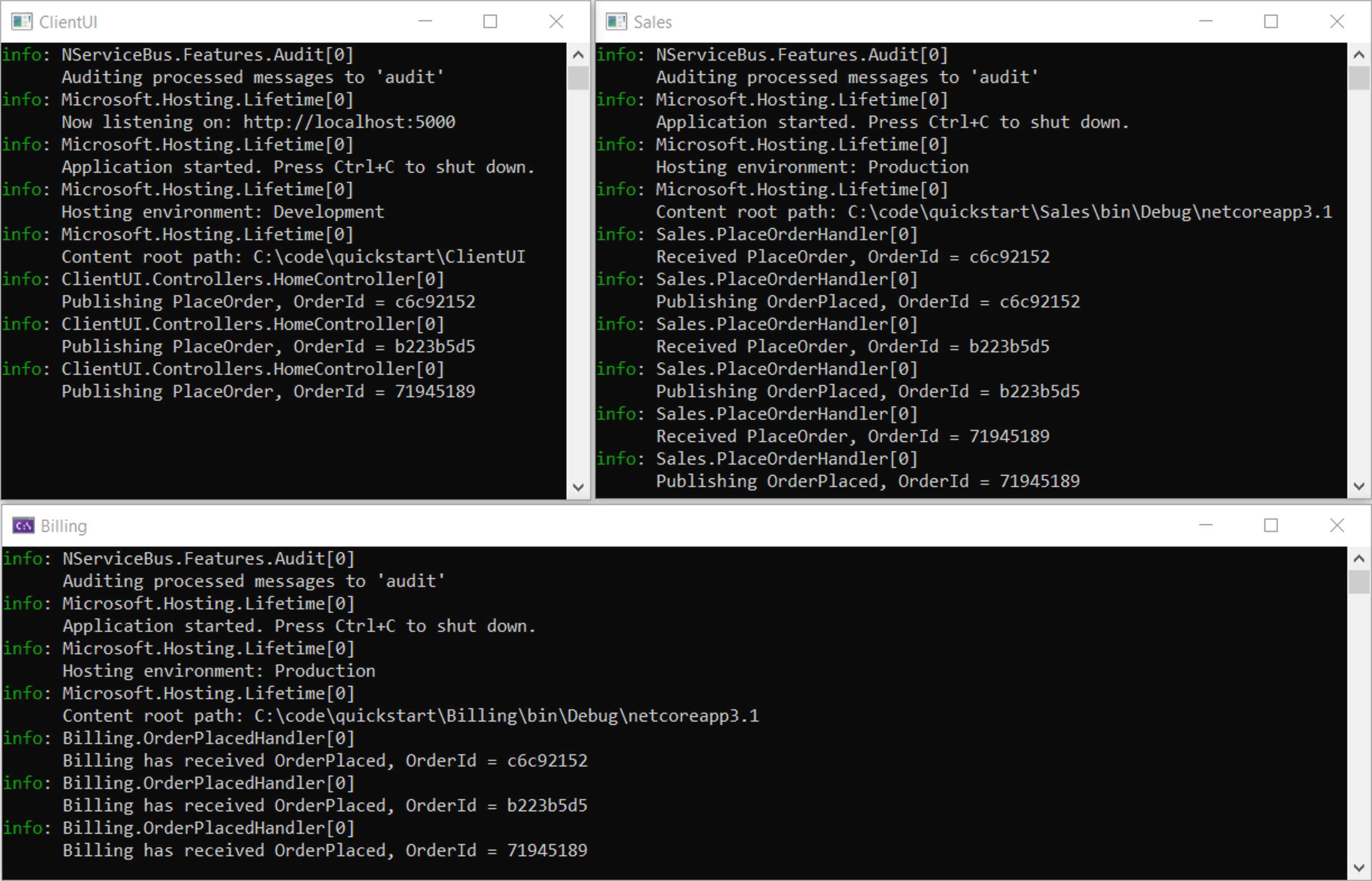
In the **ClientUI** web application, click the **Place order** button to place an order, and watch what happens on the other windows.
It may happen too quickly to see, but the **PlaceOrder** command will be sent to the **Sales** endpoint.
In the **Sales** endpoint window you will see something similar to:
```
INFO Received PlaceOrder, OrderId = 9b16a5ce
INFO Publishing OrderPlaced, OrderId = 9b16a5ce
```
As shown, when the **Sales** endpoint receives an **PlaceOrder** command, it publishes an **OrderPlaced** event, which will be received by the **Billing** endpoint.
In the **Billing** endpoint window you will see something similar to:
```
INFO Billing has received OrderPlaced, OrderId = 9b16a5ce
```
In the **ClientUI** web application, go back and send more messages, watching the messages flow between endpoints.
## Up next
Now that the project is up and running, let's break it!