ServiceControl Management is distributed as a portable application. It won't install on machines and it'll not add any start menu entry. To run the ServiceControl Management tool, relaunch the ServiceControl installer used originally to install ServiceControl.
Every component in the Particular Service Platform (not including NServiceBus), including ServiceControl, must be downloaded and installed.
Planning
In production environments, make sure to review the environment considerations when setting up a machine with ServiceControl.
The ServiceControl Management Utility provides a simple way to set up one or more ServiceControl instances (error, audit, and monitoring). For production systems, it is recommended to limit the number of instances per machine to one of each type. The ability to add multiple instances of the same type on a single machine is primarily intended to assist development and test environments.
See ServiceControl Capacity Planning and Hardware Considerations for more guidance.
Installing ServiceControl instances
There are three types of ServiceControl instances that can be installed using the ServiceControl Management utility. As the error and audit instance usually go side-by-side, they can be installed and configured at the same time.
- Open the ServiceControl Management Utility.
- Click the
Newbutton at the top-right and a popup window appears. - Select one of the following before clicking
Next:Error only- to install only the Error instance, with the option to include integrated ServicePulseError + Audit- to install the Error and Audit instances, with the option to include integrated ServicePulseAudit only- to install only the Audit instanceMonitoring only- to install only the Monitoring instance
- Provide a name and transport.
- The default name is
Particular.. The name is used to derive names for the error and audit instances. The name of each instance can be adjusted from its default if required.ServiceControl - The transport should match the endpoint's transport.
- The default name is
- For additional instance settings, the
ServiceControlandServiceControl Auditsections are expanded.- The name of the instance can be modified; the defaults for error and audit are
Particular.andServiceControl Particular..ServiceControl. Audit - The name of the error instance is especially important to enable plugins to send information to ServiceControl.
- If multiple instances for different systems are installed on the same server, a name like
Particular.is a common option.SystemName
- Select the appropriate user account. Note that ServiceControl instances will run as Windows Services in the background.
- Be aware of the port numbers as these are used by ServicePulse to connect to ServiceControl.
- Configure the retention period for each instance.
- Configure the name of the queue that messages should arrive in. This queue is important to endpoints that send error and audit messages to these ServiceControl instances, as well as plugins.
- If needed, configure forwarding queues.
- Full-text search can be turned off for performance reasons if it's not needed.
- Integrated ServicePulse can be confirmed as on or off.
- The name of the instance can be modified; the defaults for error and audit are
A monitoring instance differs from error and audit instances in its configuration:
- There is no configuration for storage as it only stores data in memory.
- There is no forwarding queue as the messages are specific to ServiceControl monitoring.
- The queue to forward messages that can't be processed to is different, as described in monitoring setup.
As an example, after configuring an error, audit and monitoring instance for the SQL Server transport, the ServiceControl Management Utility will look similar to this:
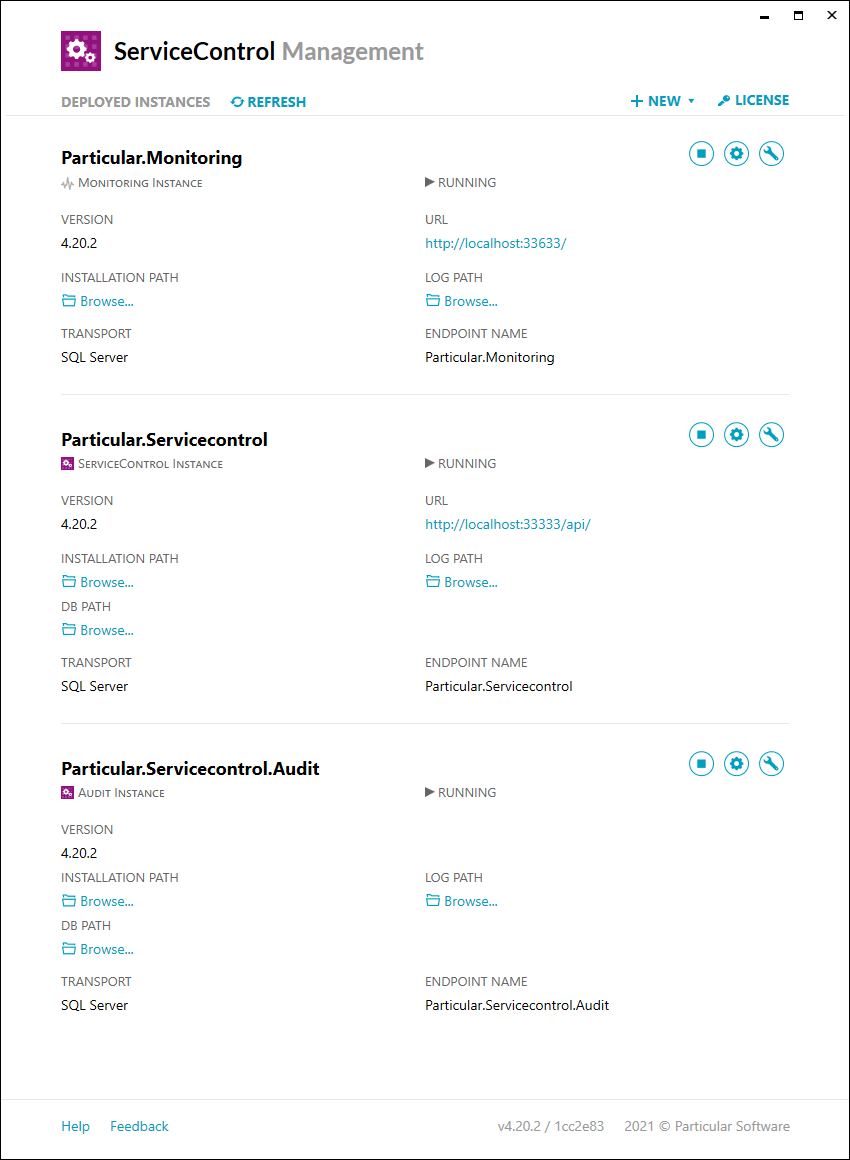
Upgrading ServiceControl instances
ServicePulse will show a notification when a new version of ServiceControl is available. New versions can then be downloaded and installed.
The ServiceControl Management Utility displays the instances of the ServiceControl service installed on the current machine. If a ServiceControl instance is running on an outdated version, an upgrade link will be shown next to the version label.

To upgrade the service, click the upgrade link next to the service name.
Clicking the upgrade link will:
- Prompt for additional required information, i.e. new mandatory settings introduced in the newer version
- Stop the service
- Remove the old binaries for ServiceControl and the configured transport
- Run the new binaries to create required queues
- Start the service
Upgrading multiple major versions
A ServiceControl installation should be upgraded one major version at a time. Check the currently installed version of ServiceControl to look up the upgrade path in the table below. For each entry in the upgrade path, install the listed version and upgrade all ServiceControl instances to that version. Once all instances are upgraded and running, install the listed version in the next row until all instances are upgraded to the latest version.
| Current Version | Upgrade Path |
|---|---|
| 1.x.y | Install 1.48.0, and update all instances |
| 2.x.y | Install 2.1.5, and update all instances |
| 3.x.y | Install 3.8.4, and update all instances |
| 4.x.y | Install 4.33.0, and update all instances |
| 5.x.y | Download the latest release, and update all instances |
All versions are available at https://github.com/Particular/ServiceControl/releases
Upgrades might take a while to run. Account for the unavailability of ServiceControl and plan the upgrade during maintenance windows if necessary.
ServiceControl plugins
Endpoint plugins like heartbeats and custom checks require sending information to ServiceControl. The name of the queue is the same name as the error instance.
See Install Heartbeats Plugin and Install Custom Checks Plugin for more information.
Remove ServiceControl instances
To remove a ServiceControl instance, click the Advanced Options button and select Remove. If applicable, select the option to remove the database and logs directories. This will stop the running instance (if it is running) and remove all files related to the instance from the local file system.
Remaining artifacts
Even after a ServiceControl instance has been removed, there are artifacts left behind. Each ServiceControl instance leaves queues in the configured transport. The queue names will depend on the configuration of the ServiceControl instance.
- instance name - control messages for the ServiceControl instance
- instance name.errors - control messages that the ServiceControl instance was not able to process
- instance name.staging - temporary failed messages while they are being retried
- audit queue name - messages that have been processed by endpoints and then forwarded to the audit queue. These messages have not yet been ingested by the ServiceControl instance.
- error queue name - messages that failed processing in endpoints and have passed immediate and delayed retries. These messages have not yet been ingested by the ServiceControl instance.
- audit log queue name if audit log forwarding was configured - messages that have been ingested from the audit queue, processed by this ServiceControl instance, and then forwarded to the audit log queue.
- error log queue name if error log forwarding was configured - messages that have been ingested from the error queue, processed by this ServiceControl instance, and then forwarded to the error log queue.
If the option to delete the database/log folders was not selected when removing the instance, then these folders and their contents are left on disk.
If the instance was configured to run under a service account then that account may have been granted Logon as a Service privileges. This is not reversed when the instance is removed.